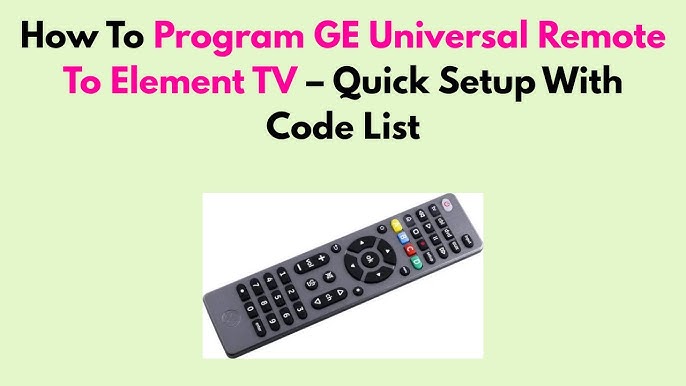
Struggling to control your TV with multiple remotes scattered around? What if you could simplify everything with just one remote?
Connecting your GE Universal Remote to your TV is easier than you think, and once you do it, you’ll wonder why you didn’t try it sooner. In this guide, you’ll discover simple, step-by-step instructions to get your remote working perfectly with your TV.
Ready to take control and make your TV experience hassle-free? Let’s dive in!

Credit: www.youtube.com
Prepare Your Universal Remote
Getting your GE universal remote ready is the first step to control your TV smoothly. This process involves three main tasks: inserting batteries, finding the correct remote codes, and powering on your TV. Each step ensures your remote works perfectly and connects easily to your television.
Insert Batteries
Open the battery compartment on the back of your remote. Insert fresh batteries matching the polarity signs (+ and -). Close the compartment securely to avoid loose contact. Using new batteries prevents connection issues and keeps the remote responsive.
Locate Remote Codes
Find the list of remote codes that match your TV brand. The codes are usually in the remote’s manual or on the manufacturer’s website. Keep the list handy for quick access during the setup process. Correct codes ensure your remote communicates properly with your TV.
Turn On Your Tv
Make sure your TV is powered on before programming the remote. Use your TV’s power button or original remote to switch it on. The TV must be on to test if the universal remote works after code entry. This step confirms the connection is successful.
Manual Code Entry Method
The manual code entry method is a reliable way to connect your GE Universal Remote to your TV. This method uses specific codes assigned to different TV brands. Entering the correct code allows the remote to communicate with your TV perfectly. It works even if the auto-search method fails. The process is simple and quick with clear steps.
Enter Setup Mode
Start by turning on your TV. Hold down the “Setup” button on the remote until the red light stays on. This means the remote is in setup mode and ready for the code. If your remote does not have a “Setup” button, press and hold the “TV” button instead.
Input Tv Code
Find the code for your TV brand in the GE Universal Remote code list. Use the number buttons on the remote to enter the code. The red light will blink and then stay solid if the code is accepted. If the light blinks several times and turns off, the code is wrong. Try the next code for your brand.
Test Remote Functions
Point the remote at the TV and press the power button. If the TV turns off, the code works. Test other buttons like volume, mute, and channel to confirm full control. If some buttons do not work, repeat the process with another code. This ensures the remote functions correctly with your TV.
Auto Code Search Method
Press and hold the “Code Search” button on your GE remote until the light stays on. Enter the TV code using the number buttons, then press “Power” to test. The remote will connect automatically if the code matches your TV brand.
Programming your GE Universal Remote to work with your TV can be a hassle-free experience with the Auto Code Search Method. This method allows the remote to automatically search for the correct code to control your TV. It’s like having a helpful assistant that takes the guesswork out of the equation. Follow these simple steps to gain control over your TV with ease.
Activate Search Mode
To start, ensure your TV is powered on. Hold the ‘Setup’ button on your remote until the red indicator light stays on. Now, press and release the ‘TV’ button. This action tells your remote that it’s ready to pair with a TV.
Scan For Compatible Codes
Press and release the ‘Power’ button repeatedly on your remote. Each press sends a new code to your TV. Keep an eye on your TV screen. The moment your TV turns off, you’ve found the right code. Isn’t it amazing how technology bridges gaps with just a few button presses?
Confirm Device Control
Once the TV turns off, press the ‘Enter’ button to save the code in your remote. Turn your TV back on to verify that the remote can control essential functions like volume and channels. Feel the triumph of technology working seamlessly in your hands! This method is not just about convenience—it’s also about giving you a sense of empowerment. Who knew a simple remote could make you feel like a tech wizard?
Credit: www.bgr.com
Troubleshooting Tips
Troubleshooting your GE Universal Remote can solve common connection problems quickly. Small issues often stop the remote from working properly. Checking a few simple things saves time and frustration. Follow these tips to get your remote and TV talking again.
Remote Not Responding
Check the remote’s sensor by pointing it at the TV. Make sure nothing blocks the signal. Press any button to see if the LED light on the remote blinks. If no light shows, the remote might not have power. Try resetting the remote by removing the batteries for a few seconds and reinserting them. Also, clean the remote’s sensor window gently with a soft cloth.
Incorrect Code Issues
Enter the correct code for your TV brand carefully. Use the code list in the remote’s manual or search online for updated codes. Try all listed codes for your TV brand if the first does not work. Use the auto-search function to find the right code by holding the setup button and pressing the power button repeatedly until the TV turns off. Save the code once the TV responds.
Battery Replacement Advice
Always use fresh batteries of the right size and type. Remove old batteries immediately to avoid leakage. Insert batteries with the correct polarity (+ and – ends). Keep spare batteries on hand to swap quickly. Avoid mixing old and new batteries in the remote. Dispose of used batteries properly to protect the environment.
Additional Remote Features
The GE Universal Remote offers more than just basic TV control. It can manage multiple devices, simplify your commands, and reset easily if needed. These extra features make it a handy tool for your entertainment setup.
Programming Other Devices
This remote can control devices like DVD players, soundbars, and cable boxes. To program another device, press the device button on the remote. Then enter the device code found in the manual. The remote will sync with your device quickly.
Using Macro Functions
Macros let you run several commands with one button press. For example, turn on the TV and soundbar at once. To create a macro, follow the remote’s instructions to record a sequence. Assign it to a button for easy access.
Resetting The Remote
Resetting clears all programmed codes and settings. This is helpful if the remote stops working correctly. Hold the setup button until the light stays on. Press and hold the power button, then release both. The remote will return to factory settings.

Credit: www.youtube.com
Frequently Asked Questions
How Do I Pair My Ge Universal Remote With My Tv?
To pair, turn on your TV first. Press and hold the “Setup” button until the red light stays on. Enter the TV code from the manual. The light will blink twice, confirming the connection.
What If My Ge Remote Doesn’t Work With My Tv?
Try re-entering the code or use the remote’s code search function. Ensure batteries are fresh. Check if your TV brand is supported by the GE remote.
Can I Program A Ge Remote Without A Code?
Yes, use the code search method. Hold the “Setup” button, then press “TV. ” Press the “Power” button repeatedly until the TV turns off, then press “Setup” again to lock the code.
How Do I Find The Correct Tv Code For Ge Remote?
Check the GE remote manual or visit the official GE website. Enter your TV brand to get a list of compatible codes for programming your remote.
Conclusion
Connecting your GE universal remote to your TV is simple with these steps. Take your time to follow each instruction carefully. Test the remote after programming to ensure it works well. Keep the remote manual handy for future reference. Enjoy easier control of your TV with one remote.
This small effort saves time and reduces clutter. Now, watching TV feels more convenient and stress-free.


