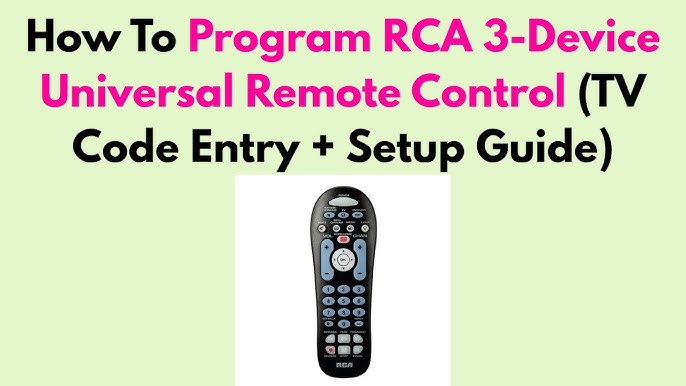
Struggling to get your RCA universal remote to work with all your devices? You’re not alone.
Setting up a universal remote can feel confusing, but it doesn’t have to be. Imagine controlling your TV, DVD player, and sound system with just one remote—no more juggling multiple gadgets. In this guide, you’ll discover simple, step-by-step instructions to set your RCA universal remote quickly and easily.
By the end, you’ll have full control at your fingertips, making your entertainment experience smoother and more enjoyable. Ready to take charge? Let’s get started!

Credit: www.youtube.com
Choosing The Right Rca Remote
Choosing the right RCA universal remote is key to a smooth setup. The remote must fit your devices and needs. Picking the perfect remote saves time and avoids frustration. Understanding options helps you select the best remote for your home.
Types Of Rca Universal Remotes
RCA offers several types of universal remotes. Each type suits different device setups and user preferences.
- Basic RCA Universal Remote:Controls TV and DVD players only. Simple design and easy to use.
- Advanced RCA Remote:Supports more devices like soundbars and streaming boxes. Has more buttons for extra features.
- RCA One-Touch Remote:Includes preset buttons for popular devices. Ideal for quick access without programming.
- RCA Backlit Remote:Buttons light up for use in dark rooms. Helps see controls easily at night.
Features To Consider
Look for features that match your needs and make control easier.
- Compatibility:Ensure the remote works with your TV, cable box, and other devices.
- Programming Options:Some remotes require manual code entry, others auto-search.
- Button Layout:Choose a remote with buttons that feel comfortable and easy to reach.
- Battery Life:Longer battery life means less frequent changes and fewer interruptions.
- Size and Shape:Select a remote that fits well in your hand for daily use.
- Additional Controls:Some remotes offer volume lock, mute, or macro functions.
Preparing For Setup
Getting ready to set up your RCA universal remote can save you a lot of frustration later. Preparation is key to making the process smooth and efficient.
Before you dive into programming, take a moment to gather everything you need and organize your devices and manuals. This simple step can make a big difference.
Gathering Required Information
Start by collecting the model numbers of all the devices you want to control with your RCA remote. This includes your TV, DVD player, sound system, or any other electronics.
Why does this matter? Because the remote needs specific codes to communicate with each device. Without the right codes, your remote won’t work properly.
You can usually find these numbers on the back or bottom of the devices or in their user manuals. If you don’t have the manuals, don’t worry—many manufacturers list model numbers online.
Organizing Devices And Manuals
Next, arrange all your devices in a way that lets you easily access them during setup. Having the remote, devices, and manuals close at hand saves time and prevents interruptions.
Keep the manuals nearby because the setup process often requires you to input device codes or follow specific instructions. Having everything ready means you won’t have to pause and search for information.
Think about your setup environment—are you near your devices? Is the remote working with fresh batteries? Address these details before you start to avoid common hiccups.
Manual Code Entry Method
Enter the device code manually into the RCA universal remote to sync it with your TV or other devices. This method ensures precise control by matching the exact code for your equipment. Follow the remote’s instructions to input the code and test the connection.
Setting up an RCA Universal Remote using the manual code entry method is a straightforward and reliable way to gain control over your various devices. This method involves entering specific codes that correspond to the devices you wish to control, such as your TV, DVD player, or home audio system. By carefully following the steps outlined below, you can seamlessly integrate your remote into your home entertainment setup.
Locating Device Codes
Before you begin, you’ll need to find the correct code for your device. RCA provides a comprehensive list of codes in the remote’s user manual or on their official website. These codes are categorized by device type and brand, making it easier for you to pinpoint the exact code you need. Having the right code is crucial. It ensures that the remote can communicate effectively with your device. It’s a bit like finding the right key for a lock; without it, you won’t be able to unlock your device’s full potential.
Step-by-step Code Input
Once you’ve located the correct code, it’s time to input it into your remote.
- Turn on the device you wish to control.
- Press and hold the ‘Code Search’ button on your remote until the indicator light turns on.
- Release the ‘Code Search’ button and press the button for the device type (e.g., TV, DVD).
- Enter the code you found earlier using the number keys.
- After entering the code, press the ‘Enter’ button.
If done correctly, the indicator light will turn off, signaling a successful code entry. If not, don’t worry—double-check your code and repeat the process.
Testing Device Control
After entering the code, it’s important to test whether your remote can control the device. Start by using the power button to turn the device on or off. Try other functions like volume control or channel changing. If everything works as expected, congratulations! You’ve successfully set up your RCA Universal Remote. If not, revisit the code list and try a different code for your device. Isn’t it satisfying when technology works seamlessly? With a bit of patience and the right steps, you can simplify your entertainment experience and enjoy more control at your fingertips.
Auto Code Search Method
The Auto Code Search Method is a reliable way to program your RCA Universal Remote without needing a list of specific codes. Instead of entering codes manually, this method scans through all available codes until it finds one that works with your device. It’s especially handy when you don’t have the code booklet or if your device’s brand isn’t listed.
Activating Search Mode
To start, press and hold the Setupbutton on your remote until the LED light blinks twice. This signals that your remote is now in search mode and ready to find the right code.
Next, press the device button you want to program, such as TVor DVD. This tells the remote which device it should be searching codes for. Without this step, the remote won’t know which set of codes to scan.
Navigating Through Codes
Once in search mode, press the Powerbutton repeatedly to cycle through all possible codes. Each press sends a different code to your device.
Keep your device in view and watch for any response, like turning off or changing volume. This is your cue that the remote has found a compatible code.
If your device doesn’t respond after cycling through many codes, don’t get frustrated. Sometimes it takes patience, and some remotes even support holding the power button down to speed up the search.
Confirming Successful Setup
When your device responds to a code, immediately press the Setupbutton again to lock in that code. The LED light will blink twice to confirm the setup.
Test other functions like volume control, input switching, or mute to ensure full compatibility. If some features don’t work, you can repeat the search to find a better code.
Have you noticed that some codes work better than others? This method helps you find the best match without guessing, saving you time and effort.
Using Rca Remote App
Using the RCA Remote App makes setting up your RCA Universal Remote easier and more intuitive. This app allows you to control multiple devices directly from your smartphone. It removes the hassle of searching for codes and simplifies the entire configuration process.
Downloading The App
Start by visiting your phone’s app store, such as Google Play or the Apple App Store. Search for “RCA Remote” and look for the official app developed by RCA. The download is quick and free, so you can have it ready in seconds.
Make sure your phone’s operating system is compatible with the app version. If you’ve ever struggled with bulky remotes, you’ll appreciate how handy this app can be.
Connecting To Devices
Once installed, open the app and turn on the device you want to control. The app will prompt you to connect via Bluetooth or Wi-Fi, depending on your device model. This step is crucial because it links your phone directly to your TV, DVD player, or sound system.
Have you noticed how many devices are now smart-enabled? This connectivity makes managing your entertainment setup simpler than ever.
Configuring Remote Settings
After connection, the app guides you through customizing the remote settings. You can assign buttons, set up device profiles, and even create macros for multiple actions with a single tap. This flexibility means your remote works exactly how you want it to.
Think about the last time you wished your remote could do more. With these options, you’re in control without needing to memorize codes or instructions.
Troubleshooting Common Issues
Troubleshooting common issues with your RCA universal remote can save time and frustration. Many problems have simple fixes that do not require technical help. Understanding the usual problems helps you use the remote smoothly.
Check the remote’s battery first. Weak or dead batteries often cause the remote to stop working. Also, confirm the remote is pointed at the device’s sensor. Dirt or obstacles can block the signal.
Remote Not Responding
The remote may not respond because of dead batteries or poor battery contact. Replace old batteries with fresh ones. Clean the battery contacts gently using a dry cloth to remove corrosion.
Check if the remote is in range of the device. Most remotes work best within 20 feet. Remove any objects between the remote and device sensor that may block the signal.
Device Not Controlling Properly
The device may not respond if the remote code is incorrect. Try reprogramming the remote with the correct code for your device brand.
Sometimes the remote controls only some functions. Confirm you are using the remote in the right mode, such as TV, DVD, or AUX mode. Switch modes using the remote buttons.
Resetting The Remote
Resetting the remote can clear wrong settings or errors. To reset, remove the batteries and press any button for 10 seconds. Reinstall batteries and try programming again.
Resetting can fix many issues and restore the remote to factory settings. Keep a list of your device codes handy before resetting for easy setup afterward.
Maintaining Your Rca Remote
Maintaining your RCA remote ensures it works smoothly for a long time. Simple care routines keep buttons responsive and prevent damage. Regular checks help avoid unexpected issues. Follow easy steps to extend the life of your remote control.
Battery Replacement Tips
Choose the right batteries for your RCA remote. Use fresh, high-quality alkaline batteries for best results. Remove old batteries if you do not use the remote for a long time. Check battery contacts for any dirt or corrosion before inserting new ones.
- Open the battery compartment carefully.
- Insert batteries matching the correct polarity (+ and -).
- Close the compartment securely to avoid loose connections.
- Replace batteries immediately if the remote stops working.
Cleaning And Care
Keep your RCA remote clean to maintain good button response. Use a soft, dry cloth to wipe the surface regularly. Avoid using water or harsh chemicals that can damage the remote. For stubborn dirt, slightly dampen the cloth with water, then dry immediately.
- Do not spray cleaners directly on the remote.
- Clean between buttons gently with a soft brush or cotton swab.
- Keep the remote away from heat and direct sunlight.
- Store the remote in a safe place to prevent drops or spills.

Credit: www.youtube.com

Credit: www.youtube.com
Frequently Asked Questions
How Do I Program An Rca Universal Remote?
To program your RCA universal remote, turn on the device. Press and hold the “Code Search” button until the light blinks. Enter the device code, then press “Power” to test. Repeat if needed until the device responds.
Where Can I Find Rca Remote Codes?
RCA remote codes are usually found in the remote’s manual or on RCA’s official website. You can also search online databases by device brand and model for the correct code.
Can I Reset My Rca Universal Remote?
Yes, press and hold the “Code Search” button until the light blinks twice. Then press and hold “Setup” until the indicator light stays on. This resets the remote to factory settings.
What If My Rca Remote Doesn’t Work After Programming?
Try reprogramming with a different code from the list. Ensure batteries are fresh and correctly placed. If it still fails, check device compatibility with the remote.
Conclusion
Setting your RCA universal remote is simple with these clear steps. Take your time and follow each instruction carefully. Test the remote after programming to ensure it works correctly. Keep the remote’s manual handy for future reference. Enjoy the convenience of controlling multiple devices with one remote.
This saves space and reduces clutter around your TV area. Remember, practice makes perfect. Try again if the first attempt doesn’t work. Now, you can control your devices easily and comfortably.


