Want to enjoy richer, clearer sound from your TV without the mess of extra cables? Connecting your TV to a soundbar via Bluetooth is the easiest way to boost your home entertainment experience.
You might think it’s complicated, but with the right steps, you can have it set up in minutes. Imagine sitting back and hearing every word and note perfectly, making your favorite shows and movies more immersive than ever. Keep reading, and you’ll learn exactly how to make your TV and soundbar work together wirelessly—no tech skills needed.
Check Tv And Soundbar Compatibility
Checking compatibility between your TV and soundbar is essential before connecting them via Bluetooth. Not all devices support Bluetooth audio connections. Knowing the features of both devices helps avoid connection issues and ensures good sound quality. Start by confirming Bluetooth support on your TV and the Bluetooth features on your soundbar.
Bluetooth Support On Tv
Many modern TVs have built-in Bluetooth. This feature allows wireless audio streaming to devices like soundbars and headphones. Check your TV’s settings menu or user manual for Bluetooth options. Some older TVs may not support Bluetooth or only support limited Bluetooth profiles. Confirm if your TV can send audio signals to Bluetooth speakers. If unsure, search the TV model online with “Bluetooth support”.
Soundbar Bluetooth Features
Soundbars often come with Bluetooth, but their capabilities can differ. Look for Bluetooth version and supported profiles like A2DP, which handles stereo audio streaming. Some soundbars support only receiving Bluetooth signals, while others may offer additional features like pairing with multiple devices. Check the soundbar’s manual or product description to confirm compatibility with your TV’s Bluetooth. This step prevents pairing errors and ensures smooth connection.

Credit: www.youtube.com
Prepare Devices For Pairing
Preparing your TV and soundbar for Bluetooth pairing is the first step toward better sound. Both devices must be ready to find and connect with each other. This preparation ensures a smooth and fast connection without interruptions.
Check that both devices have enough battery or are plugged in. This prevents disconnections during the pairing process. Also, keep the devices close to each other to avoid signal issues.
Power On Both Devices
Turn on your TV and soundbar. Make sure both devices are fully powered up. A powered-off device cannot connect via Bluetooth. Wait a few seconds after powering on to let them initialize.
Enable Bluetooth On Tv
Access your TV’s settings menu. Find the Bluetooth option and switch it on. Some TVs may label it as “Wireless” or “Connections.” Turning on Bluetooth makes your TV discoverable to the soundbar.
Activate Pairing Mode On Soundbar
Put your soundbar in pairing mode. This mode allows it to search for nearby devices. Usually, a button labeled “Bluetooth” or “Pair” activates this mode. Check your soundbar’s manual if you are unsure.
Pair Tv With Soundbar
Start by turning on Bluetooth on both your TV and soundbar. Select the soundbar from your TV’s Bluetooth list to connect them wirelessly. Enjoy clear, rich sound without any cables.
Pairing your TV with a soundbar via Bluetooth is a simple way to enhance your viewing experience. Imagine watching your favorite movie with crystal-clear sound enveloping you from every angle. It’s easier than you might think, and you don’t need to be a tech wizard to pull it off. Here’s how you can get started.
Access Tv Bluetooth Settings
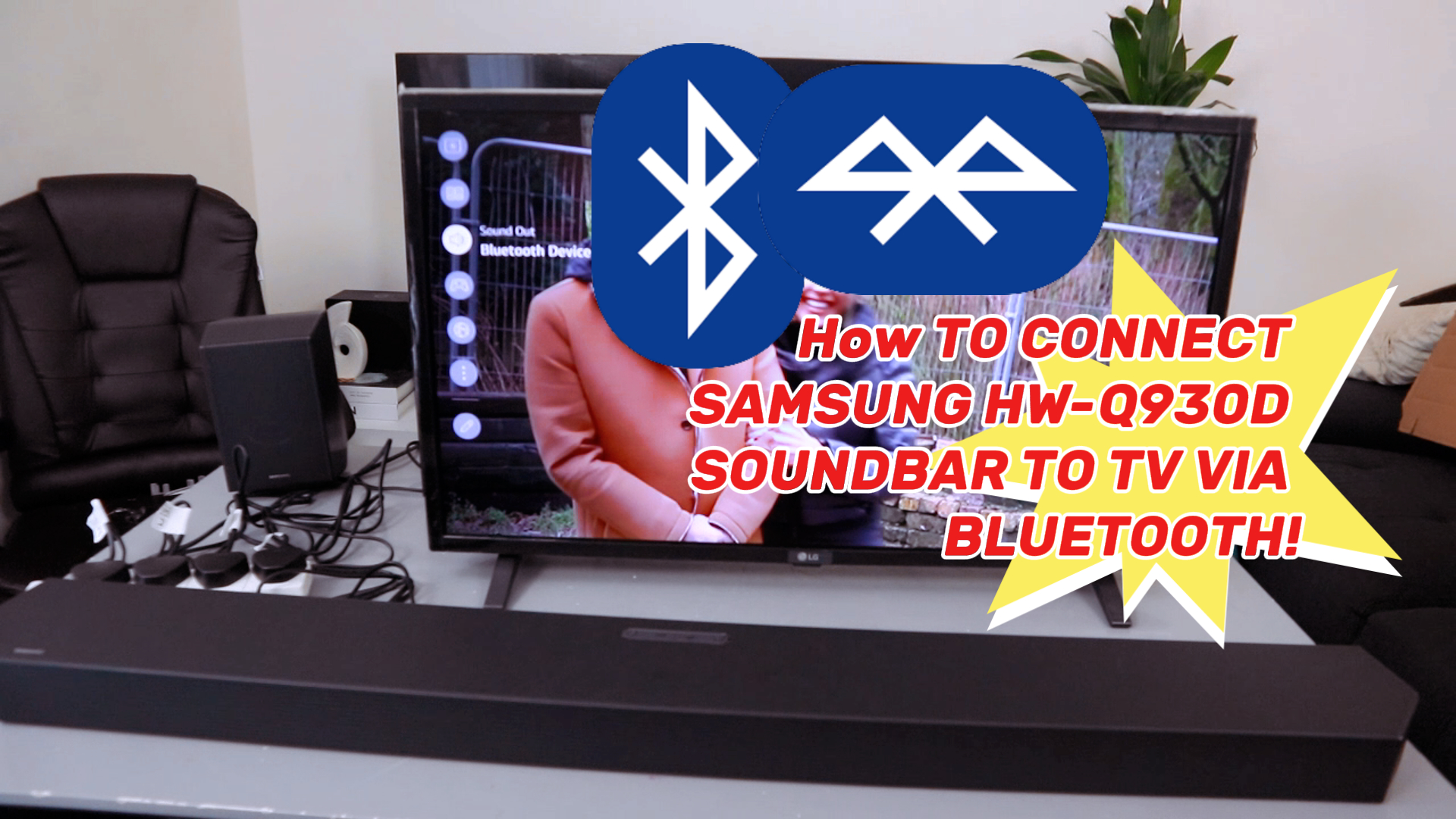
First, grab your TV remote and navigate to the settings menu. Look for the Bluetooth settings, usually nestled under the “Sound” or “Audio” section. It’s like finding a hidden treasure in your TV’s menu—once you know where to look, it becomes second nature.
Search For Available Devices
Once you’re in the Bluetooth menu, initiate a search for available devices. Your TV will scan for nearby Bluetooth-enabled gadgets. It’s like watching your TV cast a net to find your soundbar, ready to make that connection.
Select Soundbar And Connect
When your soundbar appears on the list, select it to pair. You might have to confirm a passcode, but don’t worry; it’s usually straightforward. And just like that, your TV and soundbar are connected, ready to deliver an immersive audio experience. Have you ever struggled with this process or found a hack that makes it easier? Share your insights in the comments!

Credit: www.youtube.com
Adjust Audio Settings
Adjusting the audio settings is crucial after connecting your TV to a soundbar via Bluetooth. Proper settings ensure clear and balanced sound. Without this step, you might hear low volume or delayed audio. The process is simple and quick, improving your listening experience right away.
Set Sound Output To Soundbar
Access your TV’s audio or sound settings menu. Select the option for sound output or speaker settings. Change the output device from the TV speakers to the connected soundbar. Save or apply the changes. This directs the audio signal to your soundbar through Bluetooth.
Test Sound Quality
Play a familiar video or song on your TV. Listen carefully to the audio from the soundbar. Check for clear voices and balanced bass and treble. Adjust the soundbar’s volume and settings as needed. Make sure there are no delays or echoes.
Troubleshoot Common Issues
- No sound from the soundbar: Confirm Bluetooth is enabled on both devices.
- Audio delay: Restart the TV and soundbar, then reconnect.
- Intermittent sound: Move devices closer to reduce interference.
- Sound cuts out: Check battery or power supply of the soundbar.
Alternative Connection Methods
If Bluetooth isn’t working well or your devices don’t support it, don’t worry—there are other ways to connect your TV to a soundbar. Alternative connection methods can offer more stable sound quality and sometimes even better audio features. Understanding these options can help you get the most out of your home entertainment setup.
Using Optical Cable
Optical cables use light to transmit audio signals, which means less interference and clearer sound. Many TVs and soundbars come with an optical audio port, making this a popular alternative to Bluetooth.
To connect, simply plug one end of the optical cable into your TV’s optical out port and the other end into your soundbar’s optical in port. Then, switch your TV’s audio output settings to “optical” or “digital audio out.”
One thing to keep in mind: optical cables only carry audio, not video. Also, make sure the cable is securely connected because a loose fit can cause audio dropouts. Have you noticed how crisp the sound feels when using an optical cable compared to wireless?
Using Hdmi Arc
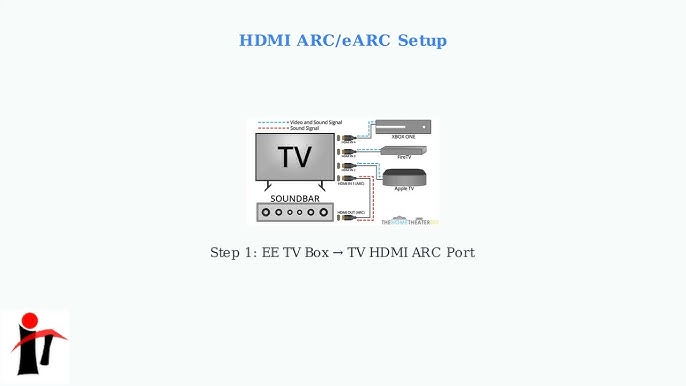
HDMI ARC (Audio Return Channel) allows audio to travel both ways through a single HDMI cable. This method is excellent if you want to reduce cable clutter while maintaining high-quality sound.
Look for the HDMI port on your TV labeled “ARC” or “eARC.” Connect this port to the HDMI ARC port on your soundbar. After that, enable HDMI ARC in your TV’s audio settings.
This connection not only supports high-definition audio formats but also allows your TV remote to control the soundbar’s volume. Have you ever wished for fewer remotes on your coffee table? HDMI ARC can simplify your setup.
Credit: us.amazon.com
Frequently Asked Questions
How Do I Pair My Tv With A Bluetooth Soundbar?
Turn on Bluetooth on both TV and soundbar. Put the soundbar in pairing mode. Select the soundbar from TV’s Bluetooth menu to connect.
Why Won’t My Tv Connect To My Bluetooth Soundbar?
Check if both devices are in pairing mode. Ensure they are within range. Restart devices and try pairing again to fix connection issues.
Can All Tvs Connect To Soundbars Via Bluetooth?
Most smart TVs support Bluetooth audio. Older models may lack this feature. Check your TV’s specifications to confirm Bluetooth compatibility.
How To Improve Bluetooth Soundbar Connection Quality?
Keep devices close and avoid obstacles. Update TV and soundbar firmware. Minimize interference from other wireless devices for better sound quality.
Conclusion
Connecting your TV to a soundbar via Bluetooth is simple and quick. Just follow the steps carefully to pair the devices. Enjoy better sound without messy wires. Bluetooth offers freedom to place your soundbar anywhere in the room. This setup improves your TV watching experience.
Remember to keep devices close during pairing for best results. Try adjusting volume and sound settings for clear audio. Now, your TV sound is richer and more enjoyable. Give it a try and hear the difference today.


