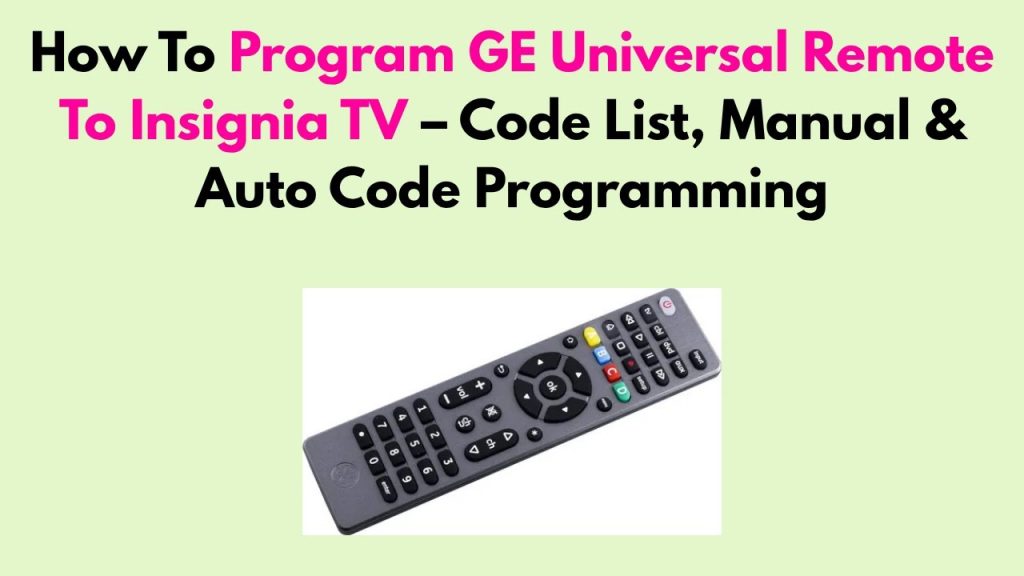
Struggling with too many remotes cluttering your living room? Imagine controlling your TV and other devices with just one remote.
Sounds simple, right? But how do you actually programme a universal remote to your TV without the headache? If you’ve ever felt lost or frustrated trying to sync your remote, you’re not alone. This guide will walk you through easy, step-by-step instructions that anyone can follow.
By the end, you’ll have full control at your fingertips—no more hunting for the right remote or juggling multiple gadgets. Ready to make your entertainment setup smarter and simpler? Let’s get started.
Choose The Right Remote
Choosing the right universal remote is the first step to controlling your TV with ease. Not all remotes work with every TV brand or model. Picking the correct remote saves time and avoids frustration. It also ensures you get the functions you need without extra buttons you will never use.
Types Of Universal Remotes
Universal remotes come in several types, each with different features and prices. Basic models control only TV functions like power, volume, and channels. Advanced remotes can also handle devices like DVD players, soundbars, and streaming boxes. Some offer touchscreens or voice control for easier use.
- Basic universal remotes
- Advanced multi-device remotes
- Touchscreen remotes
- Voice-controlled remotes
Choose the type that fits your needs and budget. Avoid buying a complex remote if you only want to control your TV. Simple remotes are easier to set up and use.
Compatibility With Your Tv
Check if the universal remote supports your TV brand and model. Most remotes list compatible brands on the box or website. Some work with all major brands, while others support only specific ones. Compatibility ensures the remote sends the right signals to your TV.
Look for remotes that mention your TV brand specifically. Some remotes allow manual code entry or automatic searching to connect with your TV. This flexibility helps if your TV is an older or less common model.
Without compatibility, the remote may not control your TV properly or at all. Confirm this before buying to avoid wasting money and time.

Credit: www.youtube.com
Prepare Your Tv And Remote
Getting your TV and remote ready is the first key move before programming a universal remote. Without a powered-on TV and a working remote, the process can hit a snag. Preparing these two ensures you can follow the programming steps smoothly and avoid unnecessary frustration.
Power On The Tv
Make sure your TV is plugged into a power source and turned on. If it’s not on, the remote signals won’t register during programming. You can use the TV’s own power button or the original remote to switch it on.
Have you ever tried programming a remote only to realize the TV was off? It wastes time and causes confusion, so double-check the power status first.
Insert Batteries Into Remote
Open the battery compartment of your universal remote and insert fresh batteries. Using new batteries ensures strong signal transmission and prevents interruptions during setup. Avoid using old or low-charge batteries as they might cause the remote to malfunction.
Check the battery orientation carefully—usually, the positive and negative ends are marked inside the compartment. This small detail can save you a lot of hassle.
Find The Tv Code
Universal remotes need specific TV codes to control your television. Entering the right code connects the remote to your TV quickly. This guide helps you find and use these codes easily.
Finding the right TV code is crucial for programming a universal remote. This code connects your remote to your TV. Without it, your remote won’t work properly. There are various ways to find this code. Below, we explore some simple methods.
Using The Manual Code List
Many universal remotes come with a manual. This manual often includes a code list. Check the manual for your TV brand. You might find several codes listed. Try each code with your remote. Follow the instructions in the manual to enter the code. If one code doesn’t work, try the next one. This process might take some time. But it is effective.
Searching Codes Online
Don’t have a manual? No problem. You can find codes online. Visit the remote manufacturer’s website. They usually have a code database. Enter your TV brand in the search bar. The site will provide relevant codes. Some websites specialize in universal remote codes. These sites can also help. Make sure to follow the remote’s instructions to enter the code. Finding the right code will connect your remote to your TV.

Credit: www.youtube.com
Program The Remote Manually
Programming your universal remote manually gives you full control over matching it with your TV. This method is especially helpful if the automatic search doesn’t work or if you want to save time by entering the code directly. It might feel a bit technical at first, but with the right steps, you’ll have your remote ready to use in no time.
Entering The Code
First, locate the code list that came with your universal remote. It’s usually in the manual or on the manufacturer’s website.
Turn on your TV, then press and hold the setup button on your remote until the indicator light stays on. Next, enter the TV’s specific code using the number buttons.
Not sure which code to try? Start with the most common ones for your TV brand, and keep a list handy so you don’t lose track.
- Turn on your TV manually before programming.
- Hold the setup button until the light is steady.
- Input the code carefully; a wrong digit means it won’t work.
Confirming The Setup
After entering the code, test it by pressing the power button. If the TV turns off, the remote is programmed correctly.
If nothing happens, press the setup button again and try a different code from your list. Sometimes, it takes a few attempts to find the right match.
Once confirmed, press the setup button to lock in the code. Your remote is now ready to control your TV functions smoothly.
- Test essential buttons like volume and channel to ensure full control.
- If the remote doesn’t respond as expected, retry with another code.
- Remember to save your working code for future reference.
Program The Remote Automatically
Programming a universal remote automatically saves time and effort. This method searches for the correct code without needing a list. The remote cycles through codes until it finds one that works with your TV. It is simple and effective for most TV brands.
Initiate Auto-search Mode
Turn on your TV manually. Hold the remote close to the TV. Press and hold the power button or the designated setup button on the remote. Wait until the remote’s indicator light turns on or blinks. This signals the remote is in auto-search mode. The remote will now start sending different codes to the TV. Keep pointing the remote at the TV screen during this process.
Testing Codes During Search
Watch the TV closely as the remote sends codes. When the TV turns off, it means the correct code is found. Press the power button once more to confirm the remote controls the TV. If the TV turns on and off with the remote, the setup is complete. If not, let the remote continue searching or restart the process. This automatic method ensures the remote pairs with your TV easily.
Test All Remote Functions
After programming your universal remote, testing all its functions ensures everything works perfectly. This step confirms the remote communicates well with your TV. It avoids frustration from unresponsive buttons later. Testing also helps identify if any buttons need reprogramming or adjustments.
Start by checking the basic controls. Then move to channel navigation. Make sure each feature responds smoothly and instantly. Testing thoroughly saves time and improves your viewing experience.
Check Power And Volume
Press the power button to turn the TV on and off. Watch for a quick response from your TV screen. Next, use the volume buttons to raise and lower the sound. Listen carefully to confirm the volume changes as expected.
If the TV does not react, try reprogramming the remote or replacing the batteries. Sometimes, the remote may need to be closer to the TV sensor. Make sure nothing blocks the signal path.
Verify Channel Controls
Test the channel up and down buttons to switch channels smoothly. Check the number pad by entering specific channel numbers. The TV should switch to the correct channel immediately.
Try using the guide or menu buttons if your remote has them. Confirm the TV opens the menu without delay. This ensures all channel controls are functioning well for easy navigation.
Troubleshoot Common Issues
Even the best universal remotes can run into hiccups when pairing with your TV. Troubleshooting common issues helps you avoid frustration and get back to enjoying your favorite shows quickly. Let’s look at some common problems and how you can fix them without hassle.
Remote Not Responding
If your universal remote isn’t responding, the problem often lies with the basics. First, check the batteries—sometimes they seem fine until you swap them out and see immediate improvement.
Next, ensure there’s nothing blocking the signal between the remote and the TV sensor. Dust, furniture, or even sunlight can interfere with the infrared beam.
Have you tried resetting the remote? Holding down certain buttons together for a few seconds can reset the device and clear glitches. Refer to your remote’s manual for the exact reset combo.
If the remote still won’t respond, test it with another device or use a smartphone camera to see if the infrared light is flashing when you press buttons. This simple trick can confirm if the remote is sending signals.
Incorrect Code Problems
Using the wrong code is a common issue that stops your universal remote from controlling your TV. Each brand and model has specific codes, and even one digit off can cause failure.
Double-check the code list from the remote’s manual or the manufacturer’s website. Sometimes, multiple codes work for a single brand, so try each one patiently.
If you don’t have the correct code, use the remote’s code search function. This feature cycles through codes automatically until your TV responds.
Think about this: Have you recently changed your TV or remote? Codes may differ, and the old code might no longer work. Keeping a record of your codes can save time in the future.
Tips For Easy Programming
Programming a universal remote to your TV can sometimes feel tricky. But a few simple tips can make the process much smoother and faster. Paying attention to small details often saves you a lot of frustration and time.
Keep Remote Close To Tv
Always keep your remote close to the TV while programming. This helps the remote send signals clearly without interference. If you move too far away, the remote might not connect properly, causing the programming to fail.
Try to point the remote directly at the TV’s sensor. Walls, furniture, or other objects can block the signal. Have you noticed how sometimes a slight change in distance makes all the difference? That’s why staying close really matters.
Use Fresh Batteries
Weak batteries can cause your remote to send weak signals. This often results in failed programming attempts or incomplete code recognition. Using fresh batteries ensures the remote works at full strength.
If your remote is acting slow or unresponsive, check the batteries first before trying again. You might be surprised how often this simple fix works. It’s a quick step that can save you from unnecessary hassle.

Credit: www.youtube.com
Frequently Asked Questions
How Do I Program A Universal Remote To My Tv?
To program a universal remote, first find your TV brand code. Enter programming mode by pressing specific buttons. Input the code and test the remote. If it fails, try another code until the remote controls your TV successfully.
What If My Universal Remote Doesn’t Work With My Tv?
If your remote doesn’t work, check the batteries first. Ensure you entered the correct TV brand code. Try resetting the remote and repeat the programming process. Consult the manual for troubleshooting or use the remote’s auto-search feature.
Can I Program A Universal Remote Without Tv Codes?
Yes, use the auto-search or code search method. Press the designated button to start scanning. The remote will cycle through codes until it finds one that controls your TV. Follow the instructions to save the correct code once found.
How Long Does It Take To Program A Universal Remote?
Programming a universal remote usually takes 5 to 10 minutes. It depends on your familiarity and the remote’s features. Following the manual’s step-by-step instructions speeds up the process.
Conclusion
Programming a universal remote to your TV saves time and effort. The steps are simple and easy to follow. You just need to find the right code and enter it carefully. Testing the remote ensures it works well with your TV.
This way, you control all devices with one remote. No more searching for multiple remotes around. Enjoy watching your favorite shows with ease. Keep this guide handy for quick setup anytime. Simple, fast, and convenient.


