Struggling to get your Philips universal remote to work with your TV or other devices? You’re not alone.
Syncing a universal remote can feel confusing and frustrating, especially when you just want to enjoy your favorite shows without hassle. But don’t worry—this guide will walk you through simple, step-by-step instructions to get your remote synced quickly and easily.
By the end, you’ll have full control over all your devices with just one remote in your hand. Keep reading to unlock the secret to seamless syncing!

Credit: manuals.plus
Philips Universal Remote Features
The Philips Universal Remote offers a simple way to control multiple devices. It is designed for easy use and broad compatibility. This remote helps reduce clutter by replacing many remotes with one. Its features include basic functions and advanced controls that make managing your entertainment system easier.
Device Compatibility
The remote works with many popular brands and device types. It supports TVs, DVD players, sound systems, and streaming devices. Philips ensures its remote can connect to most devices using infrared signals. This wide compatibility means fewer remotes on your coffee table.
Basic Functions
The remote covers all the essential controls needed daily. You can power devices on and off, adjust volume, and change channels. It also includes numeric keys for direct channel input. The buttons are large and clearly labeled for easy use by everyone.
Advanced Controls
Beyond basics, the remote offers extra features for convenience. It supports programming favorite channels and macro commands. Macro commands allow multiple actions with a single button press. The remote also lets you customize settings for different devices. This flexibility helps tailor the remote to your needs.
Preparing For Syncing
Preparing your Philips Universal Remote for syncing is a crucial step that often gets overlooked. Taking a few moments to get everything ready can save you hours of frustration later. Are you sure your remote is ready to communicate with your devices? Let’s break down what you need to do before you start syncing.
Checking Batteries
First, make sure your remote has fresh batteries. Weak batteries can cause poor signal transmission and disrupt syncing. If your remote is more than a year old or hasn’t been used much, replace the batteries even if the remote still works.
Keep spare batteries nearby to avoid interruptions. A simple test is to press any button and see if the remote responds quickly. If the response is slow or inconsistent, swap the batteries out immediately.
Gathering Device Information
Knowing the exact model number of the device you want to control is essential. This info helps you find the correct remote codes later on. Check the back or bottom of your TV, DVD player, or sound system for model details.
Write down the manufacturer and model number clearly. If you have multiple devices, gather information for each one before starting the syncing process. This saves time and avoids confusion when entering codes.
Locating Remote Codes
Each device has specific codes that the Philips Universal Remote uses to communicate. These codes are usually found in the remote’s user manual or on the Philips support website. Having these codes on hand makes syncing faster and more accurate.
If you don’t have the manual, search online by typing the remote model and the device type. Sometimes, community forums also have updated code lists shared by users who faced similar syncing challenges.
Have you ever tried syncing a remote without the right codes? It’s like trying to speak a language you don’t know. Don’t let that happen to you—get those codes ready before you start.
Manual Code Entry Method
The Manual Code Entry Method is a popular way to sync your Philips universal remote. This process involves manually entering a code that matches your device. With this method, you have more control over the setup. Follow these simple steps to ensure your remote works perfectly with your devices.
Finding The Code List
Start by locating the code list for your Philips remote. This list is usually in the user manual or on the Philips website. Make sure you have the correct model number of your remote. This ensures you find the right codes for your device.
Entering The Code
Turn on the device you want to control. Press and hold the “Setup” button on your remote until the red light stays on. Enter the code for your device using the number buttons. The red light should turn off if the code is correct.
Testing Device Response
Test the remote to see if it controls your device. Try using basic functions like changing the volume or channel. If the device responds correctly, the code entry was successful. If not, repeat the process with the next code from the list.
Auto Search Sync Method
The Auto Search Sync Method offers a simple way to connect your Philips Universal Remote to your device. It scans through all possible codes automatically. This method saves time by eliminating the need to enter codes manually. It is ideal for users who want a quick and easy setup.
Starting Auto Search
Press and hold the Setup button until the LED light turns on. Then, press the Power button to begin the search. The remote will send signals to your device, searching for the correct code. Keep pointing the remote at the device during this process. The LED light will blink as the remote cycles through codes.
Navigating Through Codes
Watch the device as the remote sends signals. When the device turns off, the correct code is found. If the device does not respond, wait for the remote to try the next code. The remote tests each code automatically without your input. This continues until the device reacts or all codes have been tried.
Confirming Successful Sync
Once the device turns off, press the Power button again to turn it back on. Press any other button to check if the remote controls all functions. The LED light will turn off, indicating the code is saved. If the remote does not control the device, repeat the auto search process.
Troubleshooting Sync Issues
Sync issues with your Philips Universal Remote can cause frustration. The remote might not control your devices properly or fail to respond. Troubleshooting these problems helps restore smooth operation quickly. Follow simple steps to identify and fix common sync problems.
Resetting The Remote
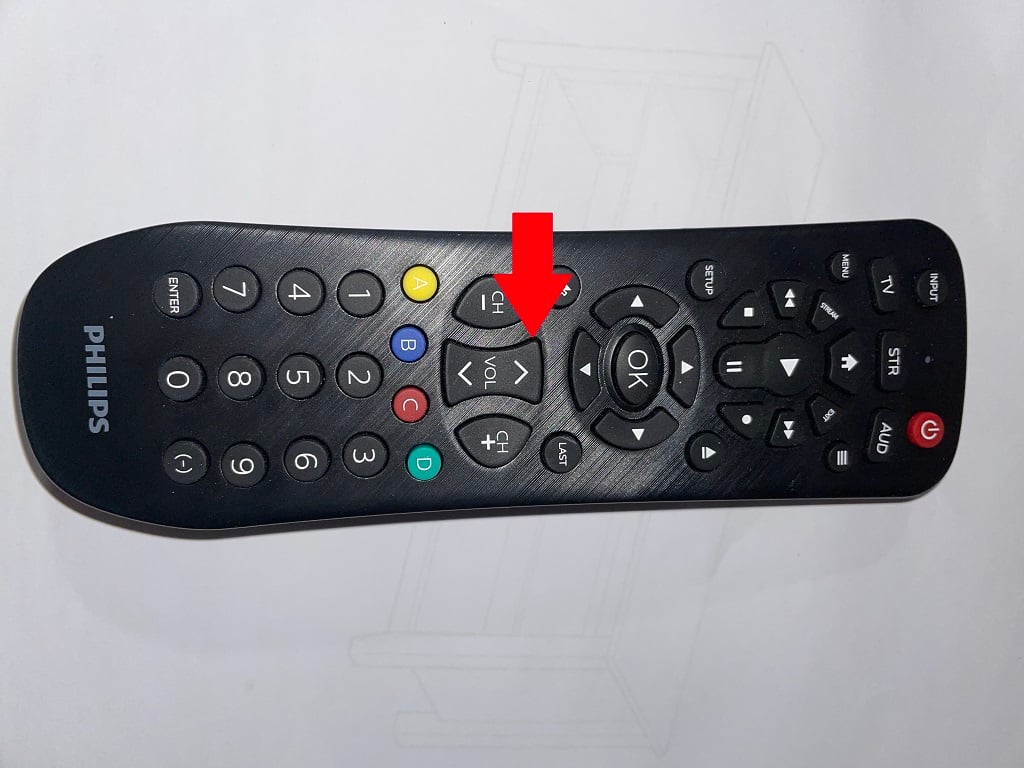
Resetting the remote clears any incorrect settings. Hold down the Setupbutton until the indicator light stays on. Then press the Powerbutton. The light will blink twice and turn off. This resets the remote to factory defaults. After reset, try syncing the remote again.
Rechecking Device Codes
Incorrect device codes cause sync failure. Find the right code for your device brand in the manual. Enter the code carefully using the number buttons. Test if the remote controls the device. Repeat the process with other codes if needed. Make sure the device is turned on during syncing.
When To Replace Batteries
Weak batteries reduce remote performance. The remote may stop working or respond slowly. Replace the batteries if buttons seem less responsive. Use fresh, high-quality batteries for best results. Always remove old batteries to prevent corrosion inside the remote.
Credit: www.online-tech-tips.com
Tips For Optimal Use
Getting the best from your Philips Universal Remote means using it correctly and keeping it in top shape. Simple tips can help you control multiple devices smoothly and avoid common issues. Using the remote app adds convenience and improves your experience.
Programming Multiple Devices
Philips Universal Remote can control several devices at once. Program each device carefully to avoid confusion. Follow these tips:
- Turn on the device you want to program.
- Enter the correct code for that device.
- Test the remote to ensure it controls the device properly.
- Repeat for each device you want to add.
- Label buttons or keep a list of codes for easy reference.
Programming multiple devices helps you switch quickly between TV, DVD, or sound systems.
Maintaining Remote Performance
Keep the remote working well for a long time with simple care. Try these steps:
- Replace batteries regularly to avoid low power issues.
- Clean the remote with a soft, dry cloth to remove dust.
- Avoid dropping or exposing the remote to water.
- Store it in a safe place to prevent damage.
- Check for firmware updates if available for your model.
Proper maintenance reduces lag and button failures.
Using The Remote App
Philips offers a remote app that works with many smartphones. It makes control easier and adds extra functions. Here is how to use it well:
- Download the official Philips remote app from your app store.
- Connect your smartphone and devices to the same Wi-Fi network.
- Follow on-screen instructions to pair the app with your devices.
- Use the app for quick access to settings and commands.
- Explore features like voice control or customizable buttons.
The remote app offers a modern way to manage your devices with ease.

Credit: www.youtube.com
Frequently Asked Questions
How Do I Program A Philips Universal Remote?
To program your Philips remote, turn on the device. Press and hold the “Setup” button until the LED blinks. Enter the device code using the keypad. Press the “Power” button to test. Repeat if needed with different codes.
What If My Philips Remote Won’t Sync?
If syncing fails, check the batteries first. Ensure the remote is pointed at the device. Try different device codes from the manual. Restart the device and remote. Reset the remote if problems persist.
Can I Sync Multiple Devices With One Philips Remote?
Yes, Philips universal remotes can control multiple devices. Program each device using its specific code. Switch between devices using the mode buttons on the remote. This allows seamless control without multiple remotes.
Where Can I Find Philips Remote Device Codes?
Device codes are usually in the remote’s user manual. Visit Philips’ official website for an updated code list. You can also find codes in online support forums and third-party code databases.
Conclusion
Syncing your Philips Universal Remote is easier than it seems. Follow the steps carefully, and your remote will work with your devices. Take your time entering the correct codes. Test the remote after programming to ensure it controls your TV or other gadgets.
Keep the remote manual nearby for future reference. This simple process saves space and reduces clutter. Enjoy the convenience of one remote for all your devices. Practice a few times, and it will become second nature.


