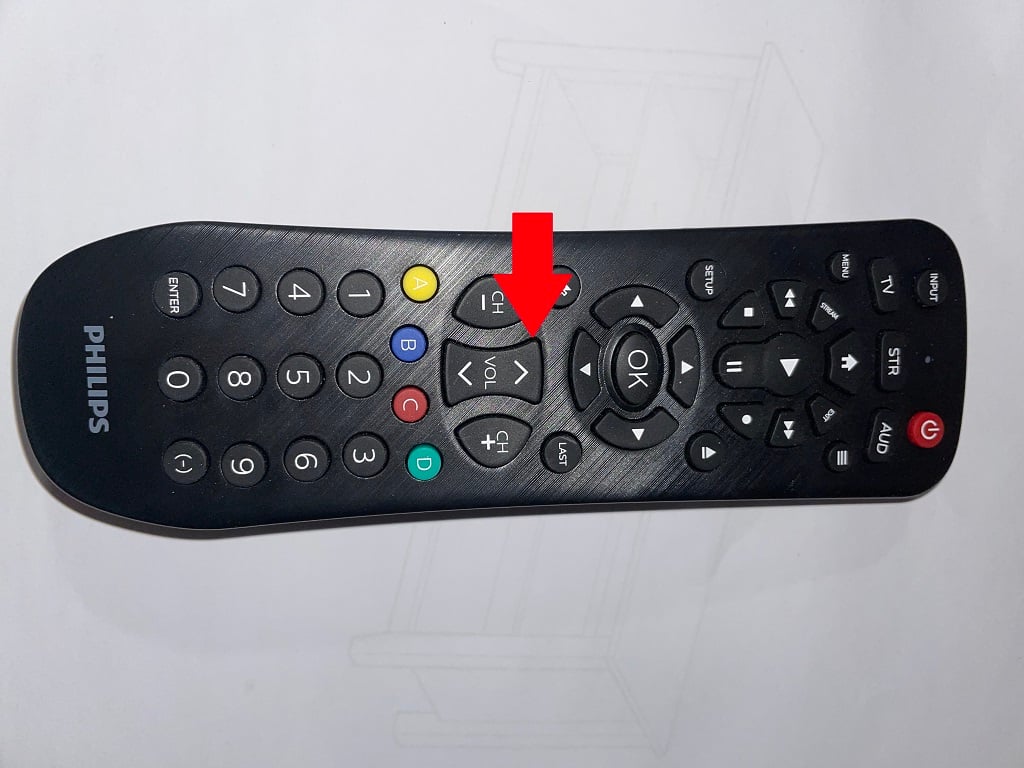
Struggling to manage multiple remotes on your coffee table? Imagine controlling your TV, DVD player, and sound system all with one simple device.
Setting up your Philips Universal Remote is easier than you think, and once done, it will save you time and frustration every day. In this guide, you’ll find clear, step-by-step instructions that anyone can follow. Ready to take full control without the hassle?
Let’s get started and make your entertainment experience smoother than ever.
Philips Universal Remote Features
The Philips Universal Remote packs a lot of power into a simple device designed to make managing your home entertainment easier. Understanding its features can help you get the most out of your remote and avoid the frustration of juggling multiple controllers. Let’s break down what makes this remote a handy addition to your living room.
Compatible Devices
This remote works with a wide range of devices, saving you from clutter. It supports TVs, DVD players, Blu-ray players, set-top boxes, and even soundbars. You can control brands like Samsung, Sony, LG, Philips, and many others without needing separate remotes.
Have you ever tried to sync a universal remote only to find your device missing from the list? Philips covers most common brands, so you’re less likely to face that issue. This broad compatibility means fewer headaches when setting up your home system.
Key Functions
- Easy Setup:The remote offers a simple setup process with code search and auto-search options to find the right device codes quickly.
- One-Touch Control:Control multiple devices with a single button press, reducing the hassle of switching remotes.
- Backlit Buttons:Some models come with backlit keys, perfect for dim rooms or late-night TV sessions.
- Macro Programming:Customize sequences of commands to automate multiple actions, like turning on your TV and sound system together.
These features mean you don’t have to be a tech expert to set up and use the remote effectively. Have you tried programming macros before? It can change how smoothly your entertainment setup runs.
Battery Requirements
The Philips Universal Remote typically uses two AAA batteries. These are easy to find and replace, which helps keep your remote working without interruption.
Consider using rechargeable AAA batteries to save money and reduce waste over time. Always check the battery compartment for clear instructions on the correct battery orientation to avoid common issues.
Have you ever had your remote stop working because of dead batteries at a crucial moment? Keeping spare batteries nearby can save you from that frustration.
Preparing For Setup
Preparing your Philips Universal Remote before setup saves time and avoids confusion. This stage ensures you have everything needed for a smooth process. A few simple checks make the setup quick and efficient.
Gathering Required Items
Collect all devices you want to control with the remote. Keep the Philips Universal Remote handy. Have the user manual nearby for quick reference. A stable surface to work on helps avoid losing small parts.
Locating Device Codes
Device codes link your remote to each appliance. Find these codes in the remote’s manual or the Philips website. Write down the codes for your TV, DVD player, or other devices. Keep the list where you can easily see it during setup.
Checking Remote Battery
Open the battery compartment of the remote. Check if batteries are fresh and properly inserted. Replace old batteries with new ones if needed. Good battery power ensures the remote responds well throughout setup.
Manual Code Entry Method
Enter the device code manually to program your Philips universal remote. This method ensures quick and accurate setup for your TV or other devices. Follow the instructions in the remote’s manual to input the correct code easily.
The Manual Code Entry Method is a reliable way to set up your Philips Universal Remote. It allows you to manually enter a specific code that matches your device. This method is straightforward and perfect for those who prefer direct interaction with their remote.
Entering Setup Mode
To begin, locate the ‘Setup’ button on your remote. Press and hold it until the red light remains on. This indicates that you have entered setup mode. The light should stay on, ready for the next step. If the light blinks, repeat the step until steady.
Inputting Device Code
Find the code list in your remote’s manual. Identify the code that corresponds to your device. Use the number keys on your remote to input this code. If the code is correct, the red light will turn off. If not, try the next code from the list.
Testing The Remote
Point the remote at your device and press the power button. Check if the device responds. Test other buttons to ensure full functionality. If the device does not respond, try a different code from the list. Repeat the process until the remote functions correctly.

Credit: manuals.plus
Auto Search Setup Method
The Auto Search Setup Method is a straightforward way to connect your Philips Universal Remote to your device without needing to know the exact code. It saves you time and frustration by automatically scanning through possible codes until it finds the one that works. This approach is ideal if you don’t have the device’s manual or a code list handy.
Starting Auto Search
Begin by turning on the device you want to control, like your TV or DVD player.
Press and hold the device button on your remote (such as TV, DVD, or AUX) until the LED light stays on.
Then, press the “Setup” button. The LED should blink once and stay on, indicating the remote is ready to start searching.
Press the “Power” button repeatedly or hold it down to let the remote cycle through all possible codes.
Identifying Correct Code
Watch your device closely as the remote scans through codes.
The correct code is found when your device turns off or responds to the remote’s command.
Sometimes, it might take a minute or two because the remote tests many codes.
Have you noticed how much easier it is to just watch for the device’s reaction instead of guessing the code?
Saving The Code
Once the device turns off, immediately press the “Setup” button again to save the code.
The LED light will turn off, confirming the code is locked in.
Test the remote by turning the device back on and trying other buttons like volume or menu to ensure full functionality.
If it doesn’t respond properly, you can repeat the process to find another code.
Programming Additional Devices
Programming additional devices to your Philips Universal Remote can seem tricky at first, but it’s a straightforward process once you get the hang of it. Adding more devices means you can control your entire entertainment system without juggling multiple remotes. Let’s look at how to manage this with clear steps and tips to avoid common pitfalls.
Switching Between Device Modes
Your Philips Universal Remote switches its control based on the device mode you select. Each button press sends commands to the device currently active in that mode, like TV, DVD, or AUX.
To switch modes, simply press the device button labeled with the gadget you want to control. This quick toggle lets you operate multiple devices seamlessly without resetting the remote each time.
Ever tried adjusting the volume on your soundbar but ended up changing the TV channel instead? Using device modes properly prevents that confusion and saves you time.
Repeating Setup Steps
If the remote doesn’t respond as expected, try repeating the setup steps for that device. Sometimes, the code entered might not fully match your device’s brand or model.
Keep a list of your device codes handy. If one code doesn’t work, move to the next one on the list. Persistence here pays off—don’t give up after the first try.
Also, double-check the batteries in your remote. Weak power can cause incomplete programming or inconsistent signals.
Managing Multiple Devices
When you program several devices, organization becomes key. Label your remote’s buttons mentally or with small stickers to remember which device mode controls what.
Consider creating a simple chart like this:
| Device | Mode Button | Primary Functions |
|---|---|---|
| TV | TV | Power, Volume, Channel |
| DVD Player | DVD | Play, Pause, Stop |
| Soundbar | AUX | Volume, Mute |
Does managing multiple devices feel overwhelming? Breaking it down and keeping notes can turn a confusing task into an easy routine. Your entertainment setup will thank you.

Credit: www.bestdealremotes.com
Troubleshooting Common Issues
Troubleshooting common issues with your Philips universal remote can save time and frustration. Problems may arise from simple errors or hardware glitches. Understanding these issues helps you fix them quickly.
Start by checking basic functions and connections. Many issues happen due to minor mistakes. Follow clear steps to identify and resolve problems effectively.
Remote Not Responding
Check the remote’s batteries first. Weak or dead batteries cause no response. Replace them with new, fresh batteries.
Make sure nothing blocks the remote’s signal. Objects or distance can stop signals from reaching your device. Point the remote directly at the device.
Test the remote sensor by using a phone camera. The infrared light should appear on the camera screen when you press a button. No light means the remote might be broken.
Device Not Controlled Properly
Confirm you programmed the remote with the correct device code. Wrong codes cause buttons to work incorrectly.
Try reprogramming the remote. Sometimes, codes get erased or mixed up.
Check if the device is compatible with the universal remote. Some brands or models may not work well.
Resetting The Remote
Resetting the remote can fix many errors. This clears all current codes and settings.
- Remove the batteries from the remote.
- Press and hold any button for 10 seconds to drain residual power.
- Reinsert the batteries.
- Program the remote again with your device codes.
Resetting returns the remote to its factory default state. This step often solves persistent problems.
Tips For Optimal Use
Using your Philips Universal Remote is easier with some smart tips. These help your remote last longer and work better. Small actions can stop problems and keep your remote ready to use. Follow these simple ways to get the most from your remote every day.
Maintaining Remote Battery Life
Use good quality batteries for longer life. Remove batteries if you won’t use the remote for a long time. Turn off the remote when not in use to save power. Avoid mixing old and new batteries together. Replace batteries as soon as the remote starts to work slowly.
Avoiding Signal Interference
Keep the remote’s path clear to the device sensor. Avoid using near devices that emit strong signals, like routers. Do not place the remote near metal objects. Point the remote directly at the device when pressing buttons. Use the remote within the recommended range for best results.
Storing Device Codes Safely
Write down your device codes in a safe place. Store codes in a notebook or digital note app. Avoid resetting the remote without saving codes first. Keep the manual or code list with your remote. This helps quickly restore settings if needed.

Credit: www.youtube.com
Frequently Asked Questions
How Do I Program My Philips Universal Remote?
To program your Philips Universal Remote, press and hold the “Setup” button until the indicator light stays on. Enter the device code using the remote keypad. Press the “Power” button to test. If the device responds, press “Setup” again to save the code.
Where Can I Find Philips Universal Remote Codes?
Philips Universal Remote codes are usually in the user manual or on Philips’ official website. You can also search online databases by brand and device type for updated codes compatible with your remote.
What If My Philips Remote Doesn’t Control My Tv?
If your Philips Remote doesn’t control your TV, try reprogramming it with the correct code. Ensure the batteries are fresh. Also, check for any obstructions between the remote and the TV’s sensor.
Can Philips Universal Remote Control Multiple Devices?
Yes, Philips Universal Remote can control multiple devices like TV, DVD player, and sound system. You can switch between devices by pressing the corresponding device button on the remote after programming each device.
Conclusion
Setting up your Philips Universal Remote is simple and quick. Follow the steps carefully for smooth operation. Keep the remote close to your devices during setup. Test each button to ensure it controls your devices correctly. Troubleshoot by repeating the process if something does not work.
This remote helps manage multiple devices with ease. Enjoy a clutter-free entertainment area and easy control. A few minutes spent now saves time later. Your TV, DVD, and other devices work together well. Keep the manual handy for future reference.


