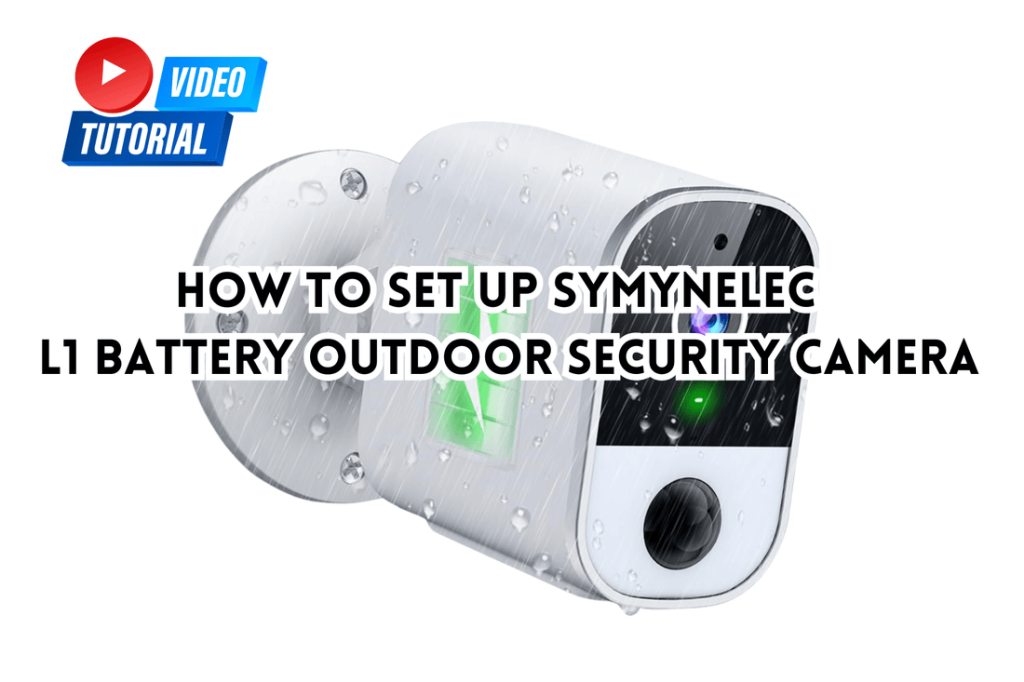
Imagine the peace of mind you’ll feel when you can monitor your home or business from anywhere. Connecting your security camera to WiFi unlocks this power, giving you instant access to your camera’s feed right from your smartphone or computer.
But perhaps you’re feeling a bit overwhelmed by the technical aspects of setting it up. Don’t worry—you’re not alone. This guide is here to simplify the process for you, step by step. You’ll be surprised at how straightforward it can be, and by the end of this article, you’ll have your camera up and running, ready to keep an eye on what matters most.
Let’s make your security setup seamless and stress-free, so you can focus on enjoying the benefits of a connected world.
Benefits Of Connecting Security Cameras To Wifi
Connecting security cameras to WiFi offers real-time monitoring from anywhere using a smartphone. This setup provides easy access to footage, enhancing security and peace of mind.
Connecting your security cameras to WiFi offers a world of advantages that can transform your home or business surveillance system. From increased flexibility to real-time monitoring, wireless connectivity provides an array of benefits that wired systems simply can’t match. Imagine being able to check in on your property from anywhere in the world, just by tapping a few buttons on your smartphone.
Increased Flexibility And Convenience
Connecting security cameras to WiFi allows you to place them almost anywhere within your network’s range. You’re not limited by the constraints of wires. This means you can strategically place cameras in areas that offer the best visibility and coverage.
Real-time Monitoring
With WiFi-connected cameras, real-time monitoring is at your fingertips. You can access live footage from your smartphone, tablet, or computer. This is perfect for those moments when you’re away and want to ensure everything is in order at home or the office.
Easy Installation
WiFi cameras are typically easier to install compared to their wired counterparts. There’s no need to fuss with complex wiring. Most models are plug-and-play, making the setup process straightforward and quick.
Remote Access And Control
Once connected to WiFi, your security cameras can be accessed remotely. Whether you’re on vacation or at work, you can log in to view footage or adjust settings. This level of control ensures peace of mind, knowing you can check in at any time.
Cost-effectiveness
While the initial investment might seem significant, WiFi cameras can save money in the long run. They reduce the need for extensive wiring and professional installation. Plus, many models offer cloud storage options, eliminating the cost of physical storage devices.
Integration With Smart Home Devices
Many WiFi-enabled security cameras can integrate with your existing smart home setup. They can work seamlessly with devices like smart locks and lights. This integration enhances your security system, making your home smarter and safer. Wouldn’t you want the peace of mind that comes with knowing your property is secure, wherever you are? Connecting your security cameras to WiFi not only offers convenience but also ensures you have a powerful tool at your disposal for safeguarding what matters most.

Credit: www.youtube.com
Choosing The Right Security Camera
Connecting your security camera to WiFi ensures seamless monitoring. Begin by accessing camera settings on your device. Enter your WiFi network credentials to establish a secure connection.
Choosing the right security camera for your home can feel overwhelming, but it doesn’t have to be. With so many options available, focusing on key features and ensuring compatibility with your WiFi can simplify the process. Here’s how you can make an informed decision and get the peace of mind you deserve.
Features To Consider
When selecting a security camera, consider the resolution. A higher resolution means clearer images, which can be crucial for identifying details in footage. Look for cameras offering at least 1080p for optimal clarity. Night vision is another essential feature. Ensure your camera can capture clear images in low-light conditions. This could be the difference between recognizing an intruder or just seeing a vague shadow. Think about motion detection capabilities. A camera with smart motion detection can alert you to unusual activity instantly, allowing you to respond quickly. Some cameras even allow you to adjust sensitivity levels to avoid false alarms from pets or passing cars. Finally, consider storage options. Some cameras offer cloud storage, while others rely on local storage like SD cards. Decide which option suits your needs best, keeping in mind the ease of access and potential costs associated with each.
Compatibility With Wifi
Before purchasing a security camera, ensure it’s compatible with your WiFi network. Check if the camera supports the frequency band your router uses, typically 2.4GHz or 5GHz. Consider the range of your WiFi. If your camera will be installed far from the router, you might need a camera with a strong signal reception or a WiFi extender to maintain a stable connection. Lastly, look into any app or software requirements. Some cameras require specific apps for setup and monitoring, so make sure your smartphone or device is compatible. This is crucial for seamless real-time monitoring and notifications. By focusing on these aspects, you’re setting yourself up for a smooth installation process and a reliable security system. Remember, the right security camera will make you feel safe and in control, even when you’re away from home.
Preparing For Connection
Preparing to connect your security camera to WiFi is a crucial step that sets the stage for a seamless installation. Before diving into the technical aspects, it’s essential to ensure everything is in place. This preparation phase involves gathering the right equipment and ensuring your WiFi signal is strong enough to support your security system’s needs. Let’s explore how to make these preparations efficiently.
Gathering Necessary Equipment
Start by collecting all the components you need. This typically includes your security camera, its power adapter, and any mounting hardware. Double-check that the camera is compatible with your home network. Having everything on hand saves you from mid-process scrambling.
If your camera requires a specific app for setup, download it ahead of time. Ensure your smartphone or tablet has enough battery to last through the process. This foresight prevents interruptions and keeps the setup smooth.
Ensuring Strong Wifi Signal
A strong WiFi signal is vital for your camera’s performance. Test your current WiFi strength using your smartphone in the intended installation location. Weak signals can lead to frustrating delays or dropped connections.
If the signal is weak, consider repositioning your router or using a WiFi extender. This simple adjustment can significantly improve connectivity. A stable connection not only enhances security but also ensures real-time alerts when you need them most.
Have you ever set up a device only to find out your WiFi was too weak? Addressing signal strength upfront can save you from this common frustration. Prioritize a reliable connection for peace of mind and effective surveillance.

Credit: www.youtube.com
Setting Up The Security Camera
Connecting your security camera to WiFi is essential for remote access. Start by ensuring your camera and WiFi router are powered on. Follow the camera’s app instructions to link it to your network, ensuring a strong signal for uninterrupted monitoring.
Setting up a security camera can seem like a daunting task, but breaking it down into manageable steps makes it much more straightforward. By ensuring your camera is properly positioned and powered, you’ll be well on your way to a secure home. Let’s dive into the essentials to get your security camera up and running smoothly.
Positioning The Camera
Positioning your security camera is crucial for capturing the right footage. Consider high-traffic areas or entry points like doors and windows. Ensure the camera has a clear line of sight and avoid obstructions like trees or parked vehicles. Mount the camera high enough to prevent tampering but low enough to capture clear images. Ask yourself—are you covering all the necessary angles?
Powering The Device
Powering your security camera is as simple as plugging it in, but there are some considerations. If your camera is battery-operated, ensure the batteries are fully charged and easily accessible for future replacements. For wired cameras, find a power outlet nearby or consider an extension cord for flexibility. Secure power connections to prevent accidental disconnections, ensuring your camera is always ready to capture crucial moments.
Connecting To Wifi
Connecting your security camera to WiFi is an essential step in ensuring you can monitor your home or office from anywhere. With a stable WiFi connection, you can access live feeds and recordings at your convenience. However, this process can be daunting if you’re unfamiliar with camera settings and network configurations. Let’s break it down into manageable steps.
Accessing Camera Settings
First, access your security camera’s settings menu. This is usually done through a dedicated app or web interface. Grab your smartphone or laptop and find the app associated with your camera model. Once logged in, navigate to the settings section. Here, you’ll find options related to network connectivity. If you’re unsure where to start, consult the user manual or the manufacturer’s website for guidance.
Entering Network Information
Now, it’s time to enter your network information. Ensure your WiFi router is powered on and functioning correctly. In the settings menu, look for WiFi or network options. Here, you’ll input your WiFi network name (SSID) and password. Double-check for typos—one wrong character can prevent a successful connection. After entering the details, save the settings and attempt to connect the camera to your WiFi network.
What if the connection fails? Consider the placement of your camera. Is it too far from the router? Sometimes, moving the camera closer to the router can resolve connectivity issues. If problems persist, check if your network has restrictions or additional security settings that might be blocking the connection.
How does your home or office setup impact this process? Share your experiences and tips in the comments to help others facing similar challenges.
Troubleshooting Common Issues
Connecting a security camera to WiFi can be tricky. Ensure the camera is within range of the router. Double-check the WiFi credentials and restart the device for a fresh start.
Troubleshooting Common Issues Connecting your security camera to WiFi is supposed to be straightforward, but sometimes things don’t go as planned. You might find yourself scratching your head, wondering why it’s not working. Let’s dive into some common issues you might face and how to tackle them effectively.
Weak Signal Problems
A weak WiFi signal can prevent your camera from connecting smoothly. Consider placing your router closer to your security camera to boost the signal strength. If that’s not feasible, WiFi extenders can be a game-changer, helping bridge the gap between your camera and the router. Have you checked your camera’s position? Obstructions such as walls or large furniture can weaken the signal. Try repositioning your camera to see if it makes a difference. Another tip is to switch your router to a less crowded channel. Sometimes, interference from other devices can disrupt your connection. Changing the channel can help you secure a more stable link.
Incorrect Network Details
Double-checking your network details can save you a lot of headaches. Ensure you’ve entered the correct WiFi name and password in your camera’s setup. A simple typo can prevent a successful connection. It’s essential to confirm that your camera is connecting to the right network. If you have multiple networks, make sure your camera isn’t trying to connect to a guest or secondary network. Do you have MAC address filtering enabled on your router? This feature can block your camera from connecting if its MAC address isn’t on the list. Adding your camera’s MAC address to the allowed list can resolve this issue. By addressing these common issues, you’ll increase your chances of a smooth and reliable connection. Remember, every setup is unique, so experimenting with different solutions may be necessary. Have you experienced any of these issues? Share your insights and how you resolved them!
Ensuring Security And Privacy
Ensuring the security and privacy of your security camera is crucial. Connecting your camera to WiFi can expose it to potential threats. Taking the right steps can safeguard your data and privacy. Let’s explore some effective measures.
Securing Your Network
Begin by securing your home network. Use a strong, unique password for your WiFi. Avoid using common words or easily guessed information. Enable WPA3 encryption for enhanced security. This provides a stronger defense against unauthorized access. Regularly change your WiFi password. This minimizes the risk of breaches.
Updating Camera Firmware
Keep your camera firmware up to date. Manufacturers release updates to patch security vulnerabilities. Check for updates through the camera’s app or website. Install updates as soon as they become available. This ensures your camera has the latest security features. Firmware updates can prevent unauthorized access to your camera.
Maintaining Your Security Camera
Connecting your security camera to WiFi enhances remote monitoring capabilities. Begin by ensuring your camera is compatible with your network. Access the camera settings through its app or interface, then follow the on-screen instructions to input WiFi credentials.
Maintaining your security camera is crucial to ensure it performs effectively and provides the protection you need. Just like any other tech device, security cameras require a bit of care and attention. By focusing on regular checks and keeping your software updated, you can avoid potential hiccups and have peace of mind knowing your home or business is secure. Let’s dive into how you can keep your security camera in tip-top shape.
Regular Checks
Regularly checking your security camera can prevent minor issues from becoming major headaches. Make it a habit to inspect your camera’s physical condition. Look for signs of wear and tear, and ensure the lens is clean to maintain image quality. Check if the camera is securely mounted and hasn’t shifted or been tampered with. A small adjustment can make a big difference in capturing crucial footage. Are the cables and connections intact? Loose wires can lead to connectivity issues, so be sure everything is snug and secure.
Software Updates
Keeping your camera’s software up-to-date is vital for security and functionality. Updates often include patches for vulnerabilities and new features that enhance performance. Set reminders to check for updates regularly. Some cameras allow you to enable automatic updates, saving you the hassle of manual checks. Have you ever ignored a software update notification? It might seem trivial, but those updates are designed to protect your data and improve your camera’s capabilities. Ignoring them can leave your system exposed to threats.

Credit: www.youtube.com
Frequently Asked Questions
How Do I Connect My Wireless Security Camera To Wi-fi?
Power on your camera and enable its setup mode. Open the camera’s app on your smartphone. Select your Wi-Fi network and enter the password. Follow on-screen instructions for connection. Once connected, test the camera’s live feed to ensure it’s working properly.
Why Is My Security Camera Not Connecting To My Wi-fi?
Your security camera might not connect due to weak Wi-Fi signals, incorrect passwords, or firmware issues. Check your network settings, ensure your router is close enough, and update your camera’s firmware. Restarting the router and camera can also help resolve connectivity problems.
How Do Security Cameras Connect To The Internet?
Security cameras connect to the internet using Wi-Fi or Ethernet cables. Wi-Fi offers wireless convenience, while Ethernet provides stable connections. Users often configure cameras via apps or web interfaces. Once connected, they can access live feeds and recordings remotely. Ensure secure connections to protect privacy.
How Do I Connect To My Security Camera?
Connect to your security camera by installing the app, creating an account, and following setup instructions. Ensure Wi-Fi is enabled.
Conclusion
Connecting your security camera to WiFi is straightforward. Follow simple steps to ensure success. Start with checking your WiFi signal strength. Make sure your camera is near the router. Use the camera’s app for easy setup. Input your WiFi details carefully.
Double-check connections for any errors. Test the camera to confirm connectivity. Troubleshoot if any issues arise. Secure your network for added safety. Enjoy peace of mind with your camera online. Stay protected and monitor easily. With practice, it becomes second nature.
Keep your instructions handy for future reference. Happy monitoring!


