Do you want to enjoy your favorite DVD movies on your Smart TV but aren’t sure how to connect your DVD player? You’re not alone, and the good news is, it’s easier than you think.
Whether you’re setting up your home theater for the first time or just upgrading your system, this simple guide will walk you through every step. By the end, you’ll be ready to watch your DVDs in clear, crisp quality on your big screen.
Keep reading, and you’ll discover how to make the most of your devices without any hassle.
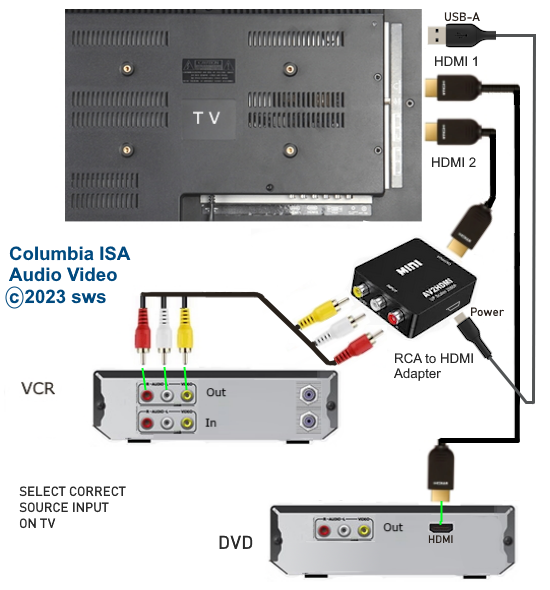
Credit: columbiaisa.50webs.com
Check Dvd Player And Tv Ports
Before connecting your DVD player to a smart TV, check the ports on both devices. This step helps find the right cables for a smooth setup. Different DVD players and TVs have various ports. Knowing these ports avoids compatibility issues and ensures good video and sound quality.
Identify Hdmi Ports
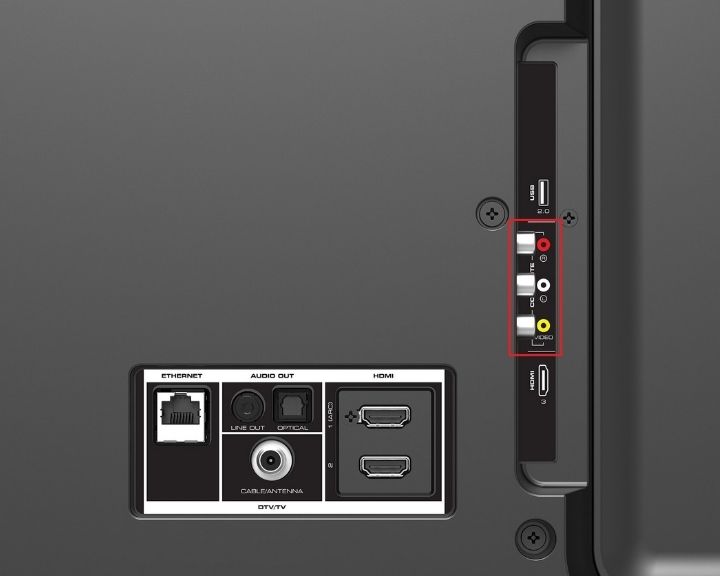
Look for HDMI ports on both the DVD player and the TV. HDMI is a single cable that carries video and audio signals. It provides the best quality and is easy to use. The HDMI port is rectangular with 19 small pins inside. Most modern devices have at least one HDMI port.
Locate Rca Or Component Inputs
Older DVD players may use RCA or component connections. RCA ports are round and color-coded: red, white, and yellow. Yellow is for video, red and white are for audio. Component inputs have three colors for video: red, green, and blue. These cables split video and audio signals into separate parts.
Consider Optical And Coaxial Options
Optical and coaxial ports transfer audio signals only. Optical ports use light and have a small square shape. Coaxial ports look like a single RCA jack but carry digital sound. Use these options if your TV or DVD player supports them. They improve sound quality compared to RCA cables.
Gather Required Cables
Before you connect your DVD player to your smart TV, it’s important to gather the right cables. Having the correct cables ensures a smooth setup and the best picture and sound quality. Missing or wrong cables can lead to frustration and poor performance, so take a moment to check what you need.
Hdmi Cable For High Quality
If your DVD player and smart TV both have HDMI ports, use an HDMI cable. This cable carries both video and audio signals in high definition, giving you sharp images and clear sound. It’s the simplest and most reliable option for modern devices.
I once tried connecting my DVD player with older cables and noticed the picture was dull and the sound weak. Switching to HDMI made a huge difference instantly. Do you want your movie nights to look and sound their best? Then HDMI is the way to go.
Rca Cables For Older Devices
Some DVD players, especially older models, may not have HDMI ports. Instead, they use RCA cables, which have red, white, and yellow connectors. These cables separate video (yellow) and audio (red and white) signals.
RCA cables won’t deliver HD quality, but they still work well for standard definition TVs or older smart TVs. Make sure your smart TV has RCA inputs before choosing this option, or you might need an adapter.
Using Adapters If Needed
If your DVD player and TV don’t share the same type of ports, adapters can bridge the gap. For instance, you might need an HDMI to RCA converter or vice versa. These adapters let you connect devices that otherwise wouldn’t fit together.
Be aware that using adapters can sometimes reduce video or audio quality. Have you checked all your ports and cables carefully? It’s worth confirming compatibility before buying adapters to avoid extra costs and hassle.
Connect Dvd Player To Tv
Connecting a DVD player to a smart TV is simple and quick. Use an HDMI cable for the best picture and sound quality. Plug one end into the DVD player and the other into the TV’s HDMI port, then select the correct input on your TV.
Connecting a DVD player to a smart TV might seem like a task from yesteryears, but it’s still relevant for many households today. Whether you want to dust off old DVDs or enjoy a movie night with friends, this guide will walk you through the process. The good news is, it’s simpler than you think. All you need is the right cables and a little bit of patience.
Plugging In Hdmi Cable
Using an HDMI cable is the easiest and most efficient way to connect your DVD player to a smart TV. Start by locating the HDMI port on both your DVD player and your TV. It’s usually at the back or side of the devices. Plug one end of the HDMI cable into the DVD player and the other end into the TV. Once connected, switch the TV input to the corresponding HDMI port. Voila! You should see the DVD player interface on your TV screen.
Connecting Rca Or Component Cables
If your DVD player or TV doesn’t support HDMI, RCA or component cables are your next best bet. These are the red, white, and yellow cables that many of us are familiar with. Connect the cables from the DVD player to the matching color ports on the TV. If you’re using component cables, there might be additional blue and green cables. Make sure the colors match to ensure proper video and audio signals.
Securing Connections Properly
Securing your connections is crucial to avoid interruptions during playback. Ensure all cables are snugly inserted into their respective ports. A loose connection can lead to poor picture quality or intermittent audio. To further secure the connections, consider using cable ties to keep your setup neat and organized. This not only improves the aesthetic but also prevents cables from being accidentally unplugged. Have you ever experienced the frustration of a loose cable mid-movie? With these simple tips, you’ll never have to pause the action again.
Credit: virtuosocentral.com
Power On And Select Input
Powering on your devices and selecting the right input is the key to getting your DVD player to work with your smart TV. This step often trips people up, but it’s straightforward once you know what to look for. Let’s dive into how to make sure both devices are ready and connected properly.
Turn On Dvd Player And Tv
Start by pressing the power button on your DVD player. You’ll usually see a light or hear a sound indicating it’s on. Next, turn on your smart TV using the remote or the power button on the TV itself.
Don’t rush this part—sometimes the devices take a moment to fully power up. Have you ever found yourself staring at a blank screen, wondering if the device turned on? Waiting a few seconds helps avoid that confusion.
Switch Tv To Correct Input Source
Once both devices are on, you need to tell your TV where to look for the DVD signal. Using your TV remote, find the “Input,” “Source,” or “AV” button. Press it to see a list of available inputs like HDMI1, HDMI2, AV, or Component.
Select the input that matches the cable connection from your DVD player. If your DVD is connected via HDMI, choose the HDMI port number you plugged into. This step is crucial—without the right input, your TV won’t show the DVD’s video.
Troubleshooting No Signal Issues
If your TV screen says “No Signal,” double-check the cable connections on both ends. Sometimes a loose HDMI or AV cable is the culprit. Try unplugging and plugging the cables back in firmly.
Also, confirm that you have selected the exact input source on your TV. If the problem persists, test with a different cable or try connecting another device to the same input. Have you checked if the DVD player is on and playing a disc? It sounds simple, but it’s a step often overlooked.
Adjust Settings For Best Experience
Adjusting your DVD player and smart TV settings enhances your viewing and listening experience. Proper settings improve picture clarity and sound quality. Small tweaks can make movies look better and sound richer. Let’s explore key settings to optimize for the best experience.
Configure Picture Settings
Access your smart TV’s picture menu to start. Adjust brightness, contrast, and sharpness for clear images. Set color temperature to make colors look natural. Choose the right picture mode like “Cinema” or “Movie” for film viewing. Turn off motion smoothing to keep the movie’s original feel. Check the aspect ratio to match the DVD’s format for full-screen viewing.
Set Audio Output Options
Go to your TV’s audio settings menu. Choose the correct audio output matching your setup. Select “TV Speakers” if using built-in speakers. Pick “External Speakers” or “Audio System” if using soundbars or home theater systems. Set audio format to “Stereo” or “Dolby Digital” based on your equipment. Adjust volume levels to avoid distortion or low sound. Test the sound with different DVDs for balance.
Enable Surround Sound If Available
Check if your DVD player and TV support surround sound formats. Enable surround sound settings in both devices. Look for options like Dolby Digital or DTS. Connect your audio system with HDMI ARC or optical cable for best results. Surround sound creates a theater-like experience at home. Test with movies that have surround sound tracks for full effect.
Test Playback And Final Tips
Testing playback is the last step to ensure your DVD player connects well with your smart TV. This check confirms the setup works smoothly and shows if any adjustments are needed. Final tips help keep your devices in good condition and avoid common issues.
Play A Dvd To Confirm Connection
Insert a DVD into your player. Use the TV remote to select the correct input source. Watch for clear video and sound. If the picture or sound is missing, check the cables and input settings again. A smooth playback means your connection is successful.
Troubleshoot Common Playback Problems
- No picture? Verify the HDMI or AV cables are firmly plugged in.
- No sound? Check the TV volume and mute settings.
- Disc won’t play? Clean the DVD or try a different disc.
- Screen flickers? Restart the DVD player and TV.
Maintain And Clean Devices Regularly
Keep the DVD player and TV dust-free. Use a soft, dry cloth for cleaning. Avoid liquids on electronic parts. Clean discs gently with a microfiber cloth. Proper care extends device life and improves playback quality.

Credit: columbiaisa.50webs.com
Frequently Asked Questions
How Do I Connect A Dvd Player To My Smart Tv?
Use an HDMI cable to connect the DVD player’s HDMI output to the Smart TV’s HDMI input. Turn on both devices and select the correct HDMI input on your TV to start watching.
Can I Use Rca Cables Instead Of Hdmi For Dvd Connection?
Yes, RCA cables can connect your DVD player to a Smart TV if HDMI is unavailable. Connect the red, white, and yellow cables to matching ports on both devices.
Why Won’t My Smart Tv Recognize The Dvd Player?
Ensure all cables are securely connected and the TV input matches the DVD player’s output. Restart both devices if the connection still isn’t detected.
Do I Need To Change Tv Settings To Play Dvds?
Usually, no changes are needed. Just select the correct input source on your Smart TV to view the DVD player’s output.
Conclusion
Connecting a DVD player to a smart TV is simple and quick. Use the right cables and ports to get the best picture. Turn on both devices and select the correct input on your TV. Now, enjoy your favorite movies on a bigger screen.
This easy setup lets you watch DVDs without hassle. Keep your cables organized and check connections if problems arise. Watching DVDs on a smart TV brings more fun to movie nights. Try it today and see how simple it really is.


